User Management Guide
ThingConnect Pulse includes a comprehensive user management system with role-based access control, allowing administrators to manage user accounts, permissions, and security settings.
User Roles and Permissions
Administrator Role
Full System Access:
- Complete dashboard and monitoring access
- YAML configuration management and deployment
- User account creation, modification, and deletion
- System settings and advanced features
- Configuration version history and rollback
- All API endpoints and administrative functions
User Management Capabilities:
- Create new user accounts
- Edit existing user details
- Change user roles and permissions
- Reset user passwords
- Activate/deactivate user accounts
- Delete user accounts
User Role (Read-Only)
Monitoring Access:
- Dashboard and live status viewing
- Historical data analysis and charts
- Endpoint detail pages and recent checks
- CSV data export functionality
- All monitoring features except configuration
Restrictions:
- Cannot modify YAML configuration
- Cannot access user management features
- Cannot change system settings
- Cannot access administrative APIs
- Cannot create or delete monitoring targets
User roles are enforced at both the web interface and API levels. Users automatically see only the features and menu options available to their assigned role.
User Account Management
Accessing User Management
- Login as an Administrator
- Navigate to Settings → User Management
- View the user management interface
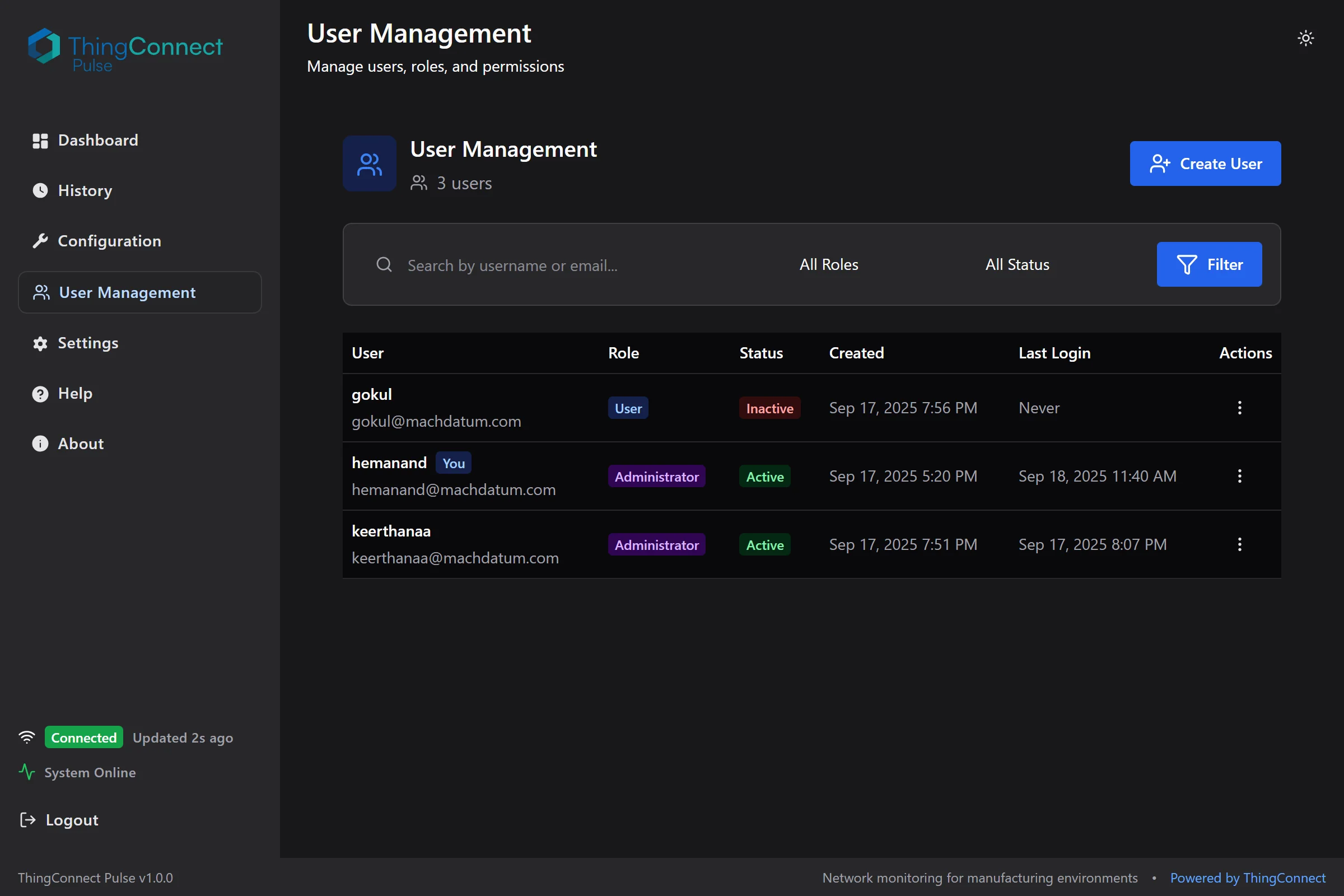
The user management interface provides comprehensive control over user accounts, roles, and permissions with search and filtering capabilities.
Only users with the Administrator role can access user management features.
Creating New Users
Step-by-Step Process:
- Click "Create User" button
- Fill in required information:
- Username: Unique identifier (required)
- Email Address: Must be unique and valid format (required)
- Password: Must meet complexity requirements (required)
- Confirm Password: Must match password exactly (required)
- Select User Role:
- Administrator: Full system access
- User: Read-only monitoring access
- Click "Create" to add the user
Validation Requirements:
- Username must be unique across all users
- Email must be unique and follow valid email format
- Password must meet security requirements (see Password Security section)
Managing Existing Users
User List Features
Search and Filtering:
- Search by username or email address
- Filter by role (Administrator/User)
- Filter by account status (Active/Inactive)
- Pagination for large user lists
User Information Display:
- Username and email address
- Assigned role
- Account creation date
- Last login timestamp
- Current active status
User Actions
Edit User Details:
- Update username (must remain unique)
- Change email address (must remain unique)
- Modify user role (with restrictions)
Role Management:
- Change between Administrator and User roles
- Cannot demote the last active Administrator
- Role changes take effect immediately
- Users must re-login to receive updated permissions
Account Status Control:
- Activate or deactivate user accounts
- Inactive users cannot login but account data is preserved
- Useful for temporary access suspension
Password Management:
- Reset user passwords
- Forces password change on next login
- User receives notification of password reset
Account Deletion:
- Permanently remove user accounts
- Requires confirmation before deletion
- Cannot delete the last active Administrator
- Action cannot be undone
The system prevents you from demoting or deleting the last active Administrator account to ensure system access is always maintained.
Password Security
Password Requirements
All user passwords must meet these complexity requirements:
Minimum Standards:
- Length: At least 8 characters
- Uppercase: At least one uppercase letter (A-Z)
- Lowercase: At least one lowercase letter (a-z)
- Numbers: At least one numeric digit (0-9)
- Special Characters: At least one symbol (!@#$%^&*)
Example Valid Passwords:
SecurePass123!MyP@ssw0rd2024Admin#Pass99
Password Reset Process
Administrator-Initiated Reset:
- Navigate to User Management
- Find the target user
- Click "Reset Password" action
- System generates temporary password
- User must change password on next login
User Experience:
- User attempts to login
- System prompts for new password
- New password must meet complexity requirements
- User can access system with new password
Account Lockout Protection
Automatic Lockout:
- Trigger: 5 consecutive failed login attempts
- Duration: 30-minute automatic lockout period
- Scope: Applies per individual user account
Administrator Override:
- Administrators can manually reset lockout status
- No waiting period required for administrator reset
- Lockout counter resets after successful login
Session Management
Session Security
Session Characteristics:
- Duration: 24-hour sliding expiration
- Extension: Each request extends session by 24 hours
- Security: HTTP-only cookies (not accessible via JavaScript)
- Protection: SameSite cookie protection enabled
Automatic Logout:
- Sessions expire after 24 hours of inactivity
- Users redirected to login page on expiration
- No data loss during session expiration
Multi-User Sessions
Concurrent Access:
- Multiple users can be logged in simultaneously
- Each user maintains independent session
- No conflict between concurrent administrative actions
Session Isolation:
- User sessions are completely isolated
- No shared session data between users
- Each user sees personalized interface based on role
Initial System Setup
First Administrator Account
During Installation:
- First user to access the web interface becomes administrator
- No existing users required for initial setup
- System prompts for administrator account creation
Account Creation Process:
- Access
http://localhost:8090after installation - Complete new account registration form
- Account automatically assigned Administrator role
- Immediate access to all system features
Adding Additional Administrators
Best Practices:
- Create at least two administrator accounts
- Use different email addresses for each administrator
- Document administrator account details securely
- Test backup administrator access before making changes
API User Management
Authentication for API Access
Session-Based Authentication:
- Use same login credentials as web interface
- Cookie-based session management
- Include session cookies in API requests
Example API Authentication:
# Login and save session cookies
curl -c cookies.txt -X POST http://localhost:8090/api/auth/login \
  -H "Content-Type: application/json" \
  -d '{"username": "admin", "password": "your-password"}'

# Use cookies for user management API calls
curl -b cookies.txt http://localhost:8090/api/usermanagement
User Management API Endpoints
List Users:
GET /api/usermanagement?page=1&pageSize=20&search=admin&role=Administrator
Create User:
POST /api/usermanagement
Content-Type: application/json

{
  "username": "newuser",
  "email": "newuser@company.com",
  "password": "SecurePass123!",
  "confirmPassword": "SecurePass123!",
  "role": "User"
}
Update User Role:
PUT /api/usermanagement/{userId}/role
Content-Type: application/json

{
  "role": "Administrator"
}
Security Best Practices
Account Management
User Creation:
- Use descriptive usernames that identify the person
- Require unique email addresses for account recovery
- Assign minimal necessary permissions (principle of least privilege)
- Regularly review user account necessity
Password Management:
- Encourage strong, unique passwords
- Force password resets for suspected compromises
- Regular password updates for sensitive accounts
- Document password policies for users
Account Maintenance:
- Deactivate accounts for departed personnel immediately
- Remove unused accounts after verification
- Monitor last login dates for inactive accounts
- Regular administrator account audits
Administrative Controls
Administrator Management:
- Maintain at least two active administrator accounts
- Use separate administrator accounts for different people
- Avoid sharing administrator credentials
- Log administrative actions for audit trail
Access Control:
- Grant administrator access only when necessary
- Regular review of administrator permissions
- Monitor user management activity
- Separate administrative and regular user accounts
All user management actions are logged in the system logs with timestamps and actor information for security audit purposes.
Troubleshooting User Management
Common Issues
Cannot Access User Management:
- Verify you're logged in as Administrator
- Check that User Management appears in Settings menu
- Confirm your account has Administrator role assigned
User Creation Failures:
- Username already exists (must be unique)
- Email address already in use (must be unique)
- Password doesn't meet complexity requirements
- Confirm password doesn't match
Login Problems:
- Account may be deactivated (check status)
- Account may be locked out (wait 30 minutes or admin reset)
- Password case-sensitive (check caps lock)
- Session may have expired (re-login required)
Role Assignment Issues:
- Cannot demote last Administrator (system protection)
- Role changes require re-login to take effect
- Check database if roles appear incorrect
- Verify administrator permissions for role changes
Recovery Procedures
Lost Administrator Access:
- If no administrators available, reinstall may be required
- Database direct access can restore administrator role
- Contact support for database recovery procedures
Forgotten Passwords:
- Administrator can reset any user password
- Password reset forces change on next login
- No self-service password reset currently available
Account Lockouts:
- Wait 30 minutes for automatic unlock
- Administrator can immediately reset lockout status
- Monitor for repeated lockout patterns (security concern)
Next Steps
- Quick Start: Basic system setup and initial configuration
- YAML Configuration: Configure monitoring with proper user roles
- Live Board & History: Use monitoring interface with appropriate permissions
- API Reference: Access user management APIs programmatically
- Troubleshooting: Resolve user management and authentication issues